Do I Need a Gaming PC for Work From Home?
No, most work-from-home professionals don't need a gaming PC unless their job involves 3D rendering, video editing, or CAD work. Gaming PCs prioritize GPU performance and RGB features that add cost without improving productivity for typical office tasks.
Exception: Software developers running multiple VMs, data analysts processing large datasets, or designers working with 4K video benefit from gaming-PC specs. For email, spreadsheets, video calls, and web browsing, integrated graphics and mid-range CPUs are sufficient.
What Specs Matter Most for a Home Office PC?
CPU performance and RAM capacity matter most for home office PCs, not GPU power. Modern quad-core CPUs like Ryzen 5 or Intel i5 handle multitasking between Chrome tabs, Excel, Teams, and Slack without bottlenecks.
Prioritize 16GB RAM over faster storage or premium cooling. Most productivity slowdowns come from insufficient RAM causing disk swapping, not from slow SSDs or stock coolers.
Is a Prebuilt or Custom PC Better for Office Work?
Prebuilt PCs are better for office work if you need immediate deployment and don't want assembly hassle. Brands like Dell OptiPlex and HP ProDesk offer business-grade reliability with 3-year warranties and on-site support.
Custom PCs offer better value and upgrade flexibility for tech-savvy professionals. Building yourself saves 15-20% versus prebuilts with similar specs, and lets you choose quality components over cost-cutting parts in budget prebuilts.
PC Specs by Job Type
These specs assume 1080p or 1440p monitors. 4K workflows require GPU upgrades for smooth performance.
Monitor and Ergonomics Considerations
Monitor Size and Resolution: 24-27 inch 1080p monitors suit basic office work, while 27-32 inch 1440p displays benefit designers and developers. Color accuracy (sRGB 95%+) matters more than refresh rate for productivity work.
Dual Monitor Setup: Dual 24-inch monitors boost productivity 20-30% for tasks requiring constant reference switching. Programmers, traders, and analysts benefit most from extended screen real estate.
Ergonomics: Invest in an adjustable monitor arm and ergonomic chair before upgrading PC specs. Poor posture causes more long-term health issues than slightly slower load times from budget components.
Eye Strain Prevention: Choose monitors with flicker-free backlighting and blue light filters. IPS panels reduce eye strain during 8+ hour workdays compared to cheaper TN or VA panels.
When Gaming-PC Specs Are Overkill
Basic Office Work: Email, spreadsheets, video calls, and web browsing run smoothly on integrated graphics and 8-16GB RAM. Spending ₹50,000+ on a gaming GPU provides zero productivity benefit for these tasks.
Light Photo Editing: Casual photo editing in Lightroom or Canva works fine on mid-range CPUs with integrated graphics. Dedicated GPUs only matter for batch processing hundreds of high-resolution images daily.
Standard Programming: Web development, scripting, and most software development tasks prioritize CPU cores and RAM over GPU power. Gaming GPUs only benefit developers working with ML, game engines, or GPU-accelerated computing.
When Gaming-PC Specs Are Necessary
3D Rendering and CAD: AutoCAD, Blender, and SolidWorks benefit significantly from dedicated GPUs like RTX 3060 or better. Real-time viewport performance and render times improve dramatically with gaming-grade hardware.
Video Editing and Motion Graphics: 4K video editing in Premiere Pro or After Effects requires RTX 3060 or RTX 4060 for smooth playback and reasonable export times. Integrated graphics struggle with 4K timelines and effects.
Machine Learning and AI Development: Training ML models locally benefits from RTX 4060 or RTX 4070 with 8-12GB VRAM. Cloud alternatives exist, but local GPU acceleration speeds iteration cycles significantly.
Game Development: Unity and Unreal Engine development requires gaming-PC specs for real-time preview and testing. Integrated graphics can't handle modern game engine requirements.
Prebuilt vs Custom: Cost Comparison
Custom builds offer better specs and upgrade paths, while prebuilts provide convenience and single-point support.
Essential Peripherals for Home Office
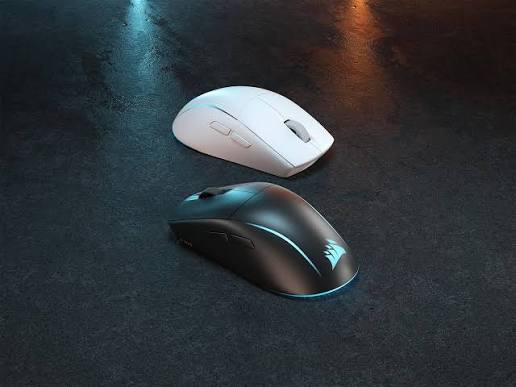
Keyboard and Mouse: Invest in quality mechanical keyboards and ergonomic mice for daily typing comfort. Budget ₹3,000-5,000 for peripherals you'll use 8+ hours daily.
Webcam and Microphone: Built-in laptop webcams suffice for occasional calls, but dedicated 1080p webcams improve professionalism for client meetings. USB microphones like Blue Yeti enhance audio quality significantly.
UPS Backup: Power cuts during work hours cost productivity and risk data loss. A 600-800VA UPS provides 15-30 minutes backup for safe shutdown during outages.
Desk Setup: Dedicated workspace with proper lighting reduces fatigue and improves work-life separation. Avoid working from bed or couch for extended periods.
FAQ
Q: Do I need a gaming PC for work from home?
No, most work-from-home professionals don't need a gaming PC unless their job involves 3D rendering, video editing, or CAD work. Gaming PCs prioritize GPU performance that adds cost without improving productivity for typical office tasks like email, spreadsheets, and video calls.
Q: What specs matter most for a home office PC?
CPU performance and RAM capacity matter most for home office PCs, not GPU power. Prioritize 16GB RAM and fast NVMe SSDs over gaming GPUs, as most productivity slowdowns come from insufficient RAM causing disk swapping rather than slow storage or graphics.
Q: Is a prebuilt or custom PC better for office work?
Prebuilt PCs offer convenience and comprehensive warranties for immediate deployment, while custom PCs provide better value and upgrade flexibility. Tech-savvy professionals save 15-20% with custom builds and can choose quality components over cost-cutting parts in budget prebuilts.
Need specific recommendations?
Check our PC build for video editing guide and browse our monitor category for productivity-focused displays.